
Progress Review
When you are about to receive an assessment, you do not send a feedback request to your teacher but instead send a Progress Review . This way you receive an assessment on one or more learning outcomes (goals).
Progress Review request
A teacher can only assess you once you have sent a Progress Review request in Portflow. It is therefore important to send this on time to avoid missing assessments.
To send a Progress Review request, go to the Portflow homepage, click the 'Goals & Progress' tab and then click the 'New progress review request' button.
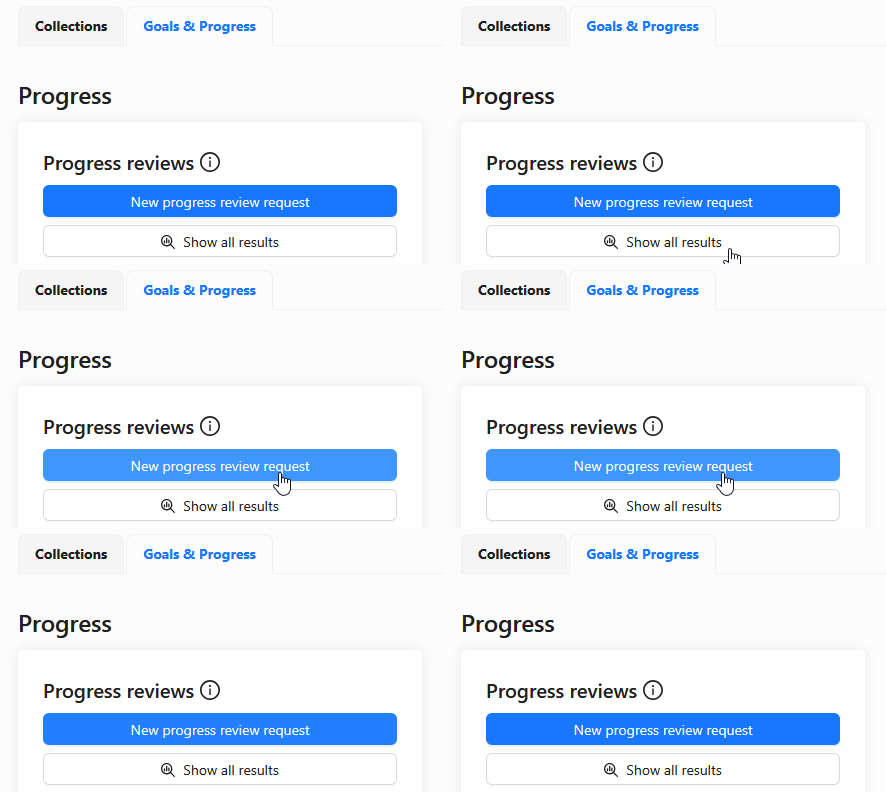
You can now go through the steps to send a Progress Review request; follow the steps carefully. Follow your teacher(s)' instructions.
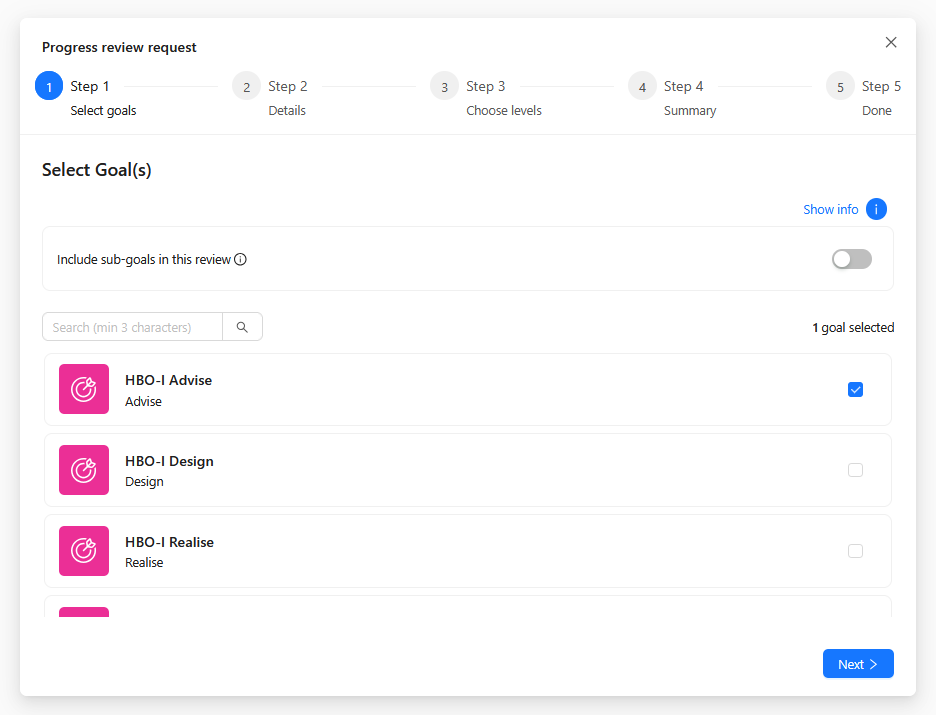
Select goals
In the first step you choose which learning outcomes (goals) you want assessed. Once your request has been sent you can no longer change this, so it is important to follow your teacher(s)' instructions carefully. Not sure? Then ask.
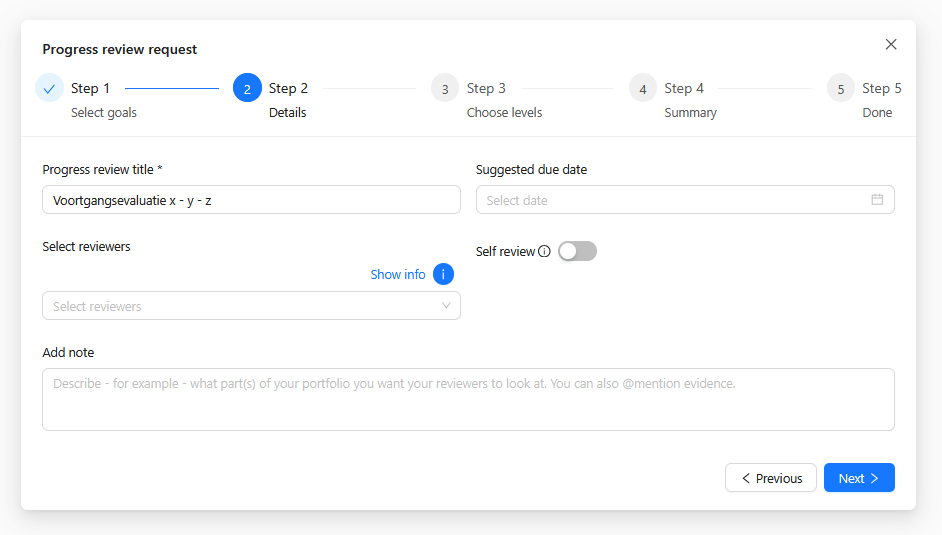
Details
In this step you give your Progress Review request a suitable name. Is it related to a progress evaluation, a sprint review, or something else? Also indicate the period; for example 'Sprint Review - Sprint 3'.
Make sure only the teacher(s) who are relevant for the chosen learning outcomes (goals) receive your request. Not sure? Ask your teacher(s).
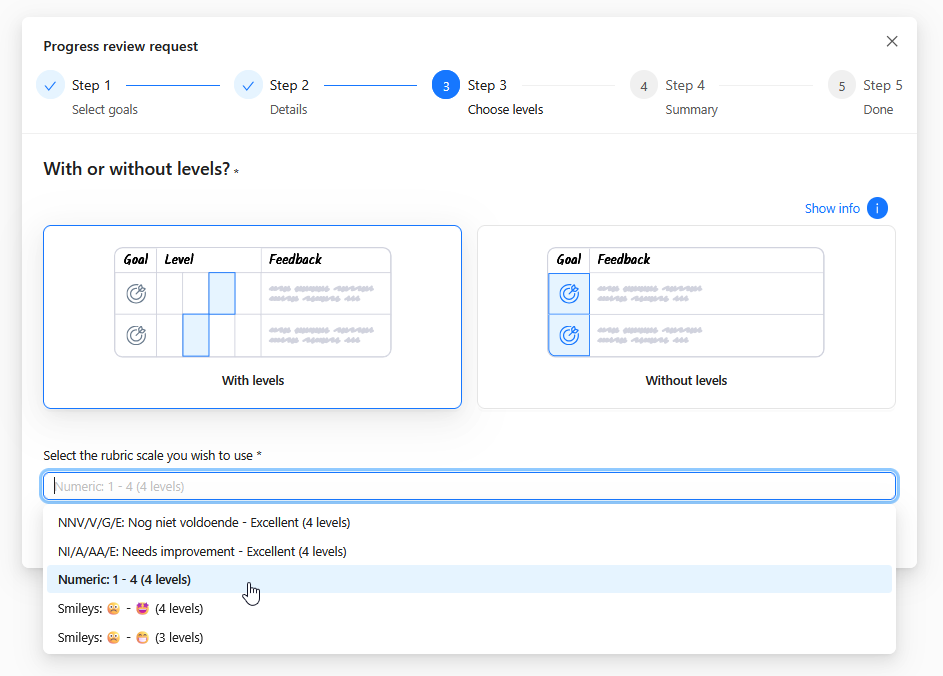
Rubric
To be assessed it is important that you choose that you want to receive an assessment and select the correct scale. Pay extra attention in this step: choose 'With levels' and then the option 'Numeric 1 - 4 (4 levels)'.
Summary
Finally you get a summary of your choices and can confirm when everything is filled in correctly. A teacher can only give you an assessment if your Progress Review request was prepared correctly at the right time. Preparing it incorrectly may mean you do not receive an assessment.