
Progress Review
When you are about to receive an assessment, you do not send a feedback request to your teacher, but a Progress Review of your learning outcomes (goals): your teachers assess where you stand and what the next steps are. You start a Progress Review from 'Goals & Progress', use the preset code from your teacher and invite your teachers . After that you complete a self-evaluation by assessing yourself. Via the overview you can review your requests.
What is a Progress Review?
A Progress Review is an (interim) moment at which you evaluate your progress on one or more learning outcomes (goals). Your teachers then give you an assessment and feedback on where you stand and what the next steps are.
You do this in Portflow. It is not a formal exam, but it is the way you collect assessments at ICT. Send a request on time: a teacher can only assess you after you have sent the request.
Start a Progress Review
You start a Progress Review from the 'Goals & Progress' tab. Follow your teacher(s)' instructions and use the preset code that belongs to that Progress Review.
Proceed as follows:
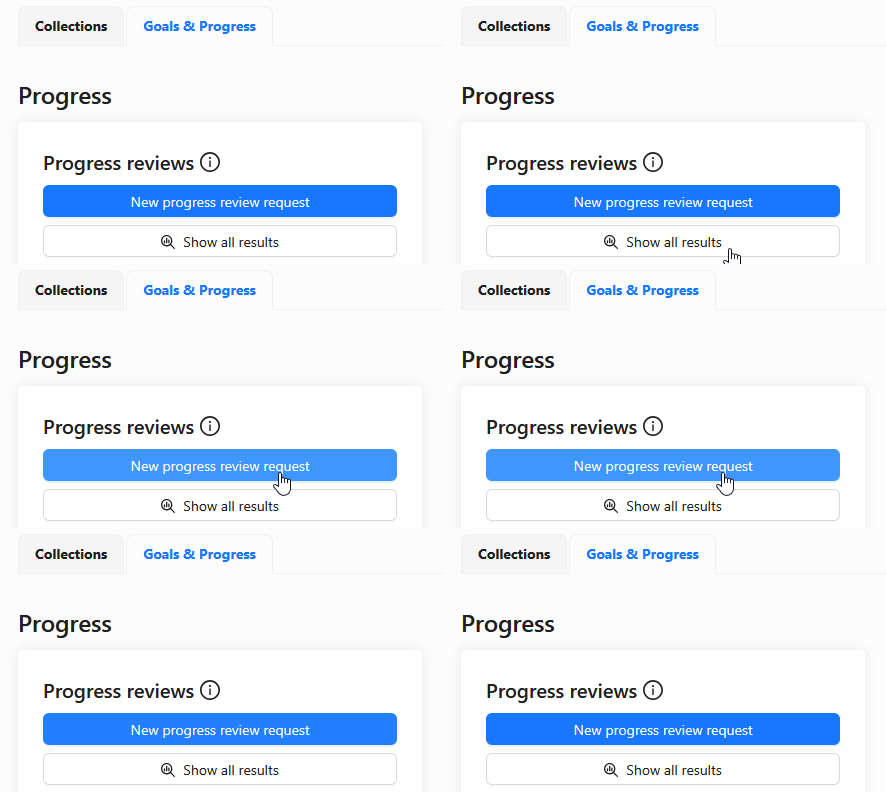
Use a preset code
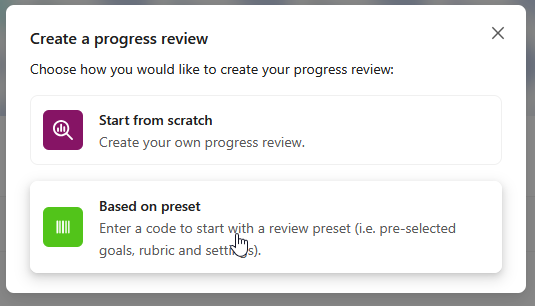
After clicking 'New progress review request', you choose how you want to start the request. Do not start from scratch: always choose 'Based on preset', unless your teacher tells you otherwise. The preset code fills in the correct learning outcomes, rubric and settings in advance.
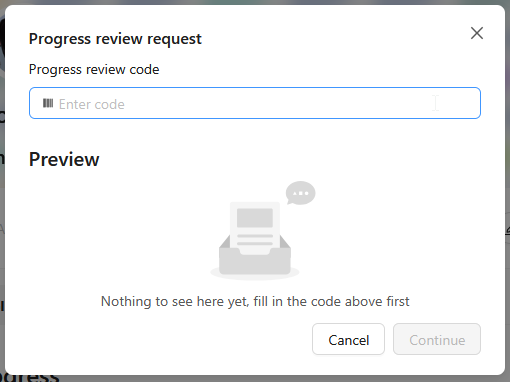
Then enter the code you received from your teacher(s). Each course unit, and each Progress Review, has a different code. Do not use an old code from a previous period.
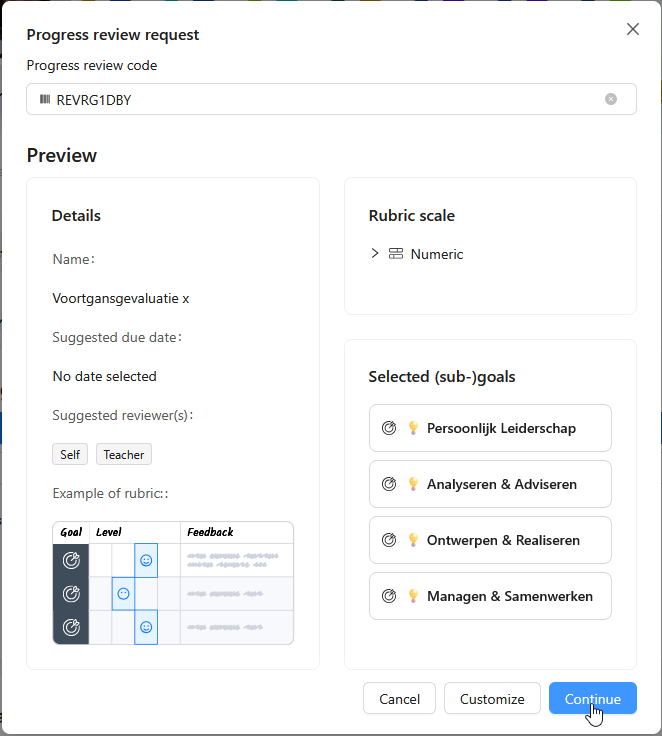
Is the name or the selection of learning outcomes incorrect? Stop and ask your teacher for the right code. Once the request has been sent, you can no longer change the selected learning outcomes.
Invite teachers and select a self-evaluation
After 'Continue' you reach the details of your request. The title and rubric scale usually already come from the preset. Always invite the teachers of the course unit here, and also tick the self-evaluation.
Fill in the details as follows:
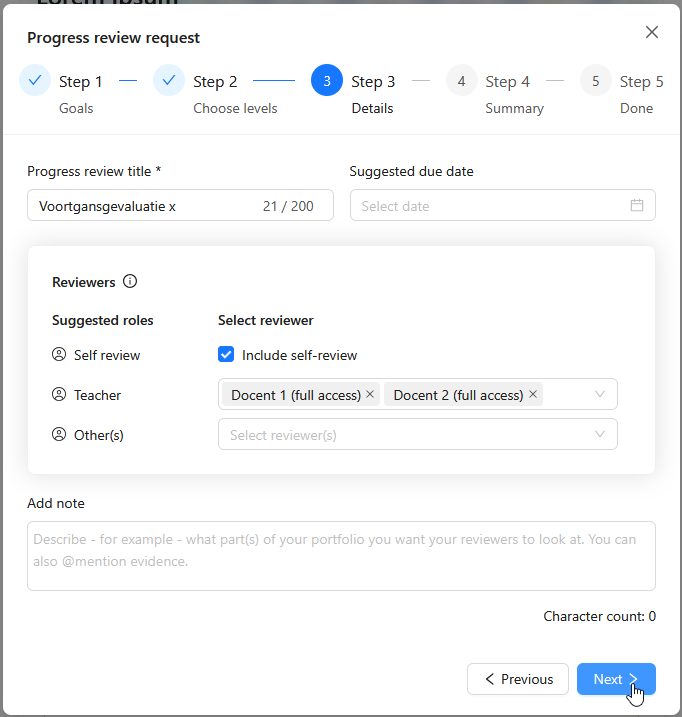
You can only invite someone who already has access to the collections that contain all selected learning outcomes. That is why you invite teachers to your entire portfolio at the start of the semester. Is a teacher not in the list? Check whether that person has access to your portfolio.
Complete a self-evaluation
As soon as you have sent the request, your teachers receive a notification. Because you ticked 'Include self-review', you also receive an invitation to fill in the Progress Review.
You do not have to finish the self-evaluation immediately. You can come back later via your notifications:
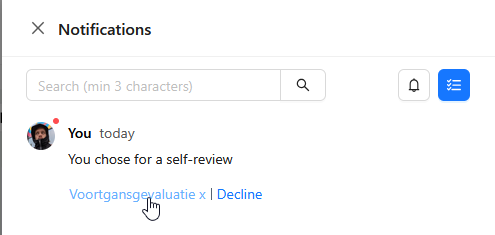
You then assess yourself in the same way as your teachers: for each learning outcome you choose a level on the rubric scale 1 to 4 and explain your rating.
Proceed as follows:
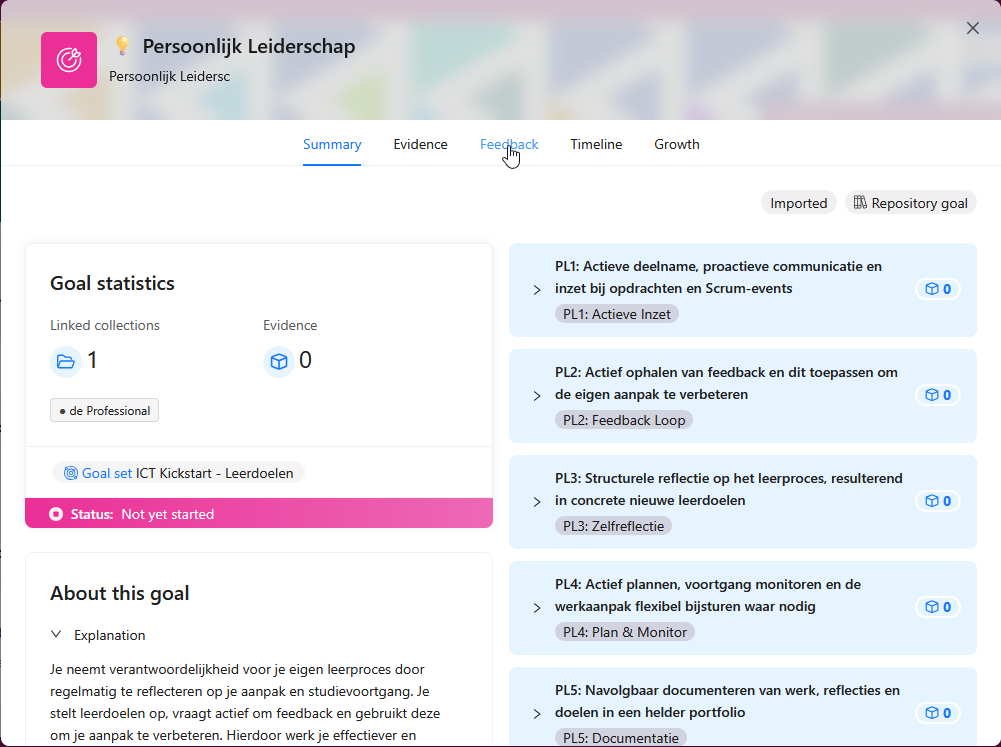
Based on the success criteria and the feedback you have collected, you assess yourself. Go back to the self-evaluation and choose one of the four boxes at 'Goal level':
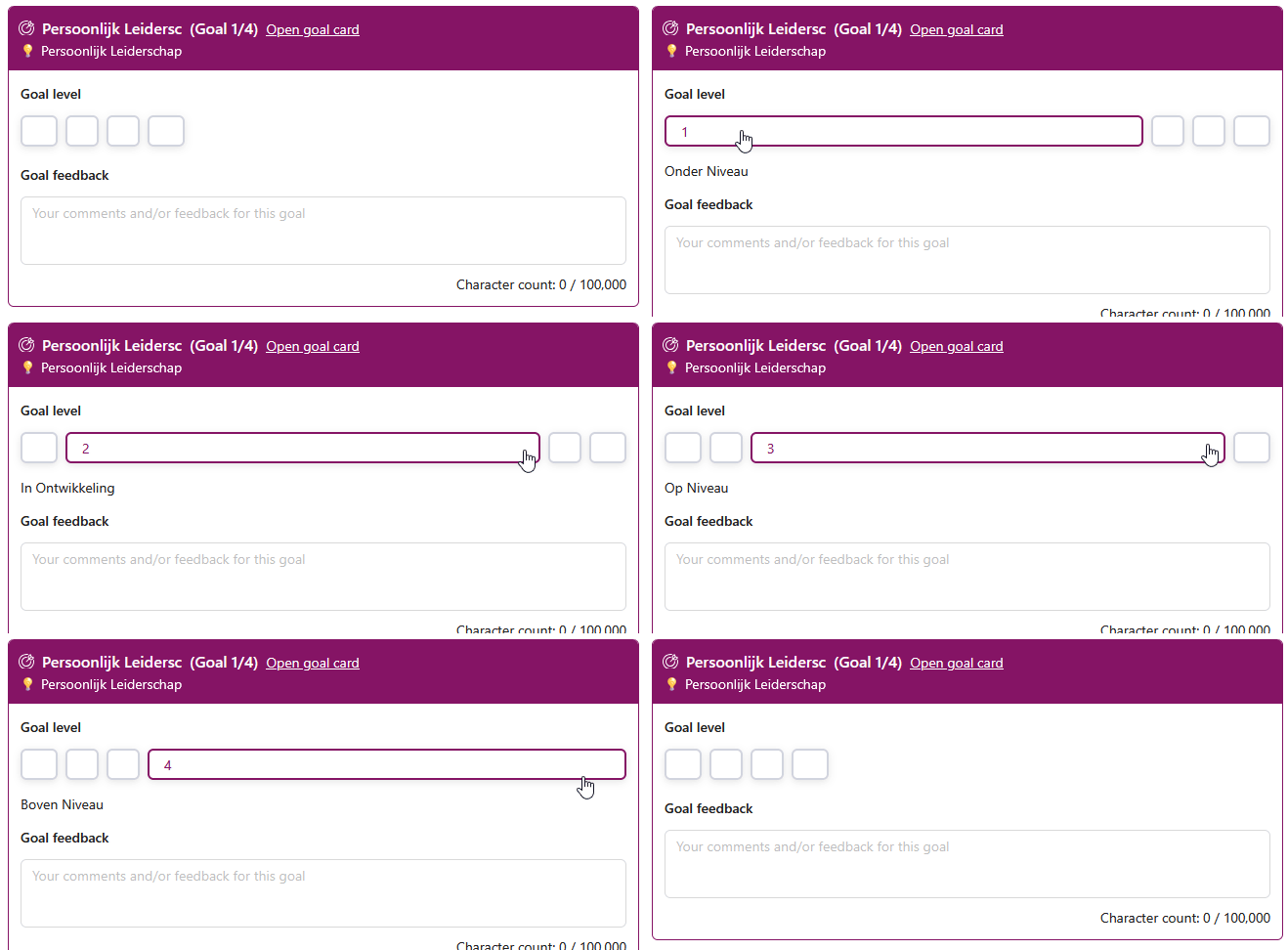
While you fill in the self-evaluation, your answers are automatically saved as a draft. As long as you have not clicked 'Submit review', you can return via your notifications.
Overview and cancelling
On the 'Goals & Progress' tab you can use 'Show all results' to see all your Progress Reviews: which ones you have sent, who has already responded and what the outcomes are.
Did you send a request by mistake? You can only cancel it as long as nobody has responded yet. Go to 'Show all results', click the three dots next to the Progress Review in question and choose 'Cancel progress review'.